Tag: software

  • Software Update Habits That Keep Your Devices Safe

    Software Update Habits That Keep Your Devices Safe

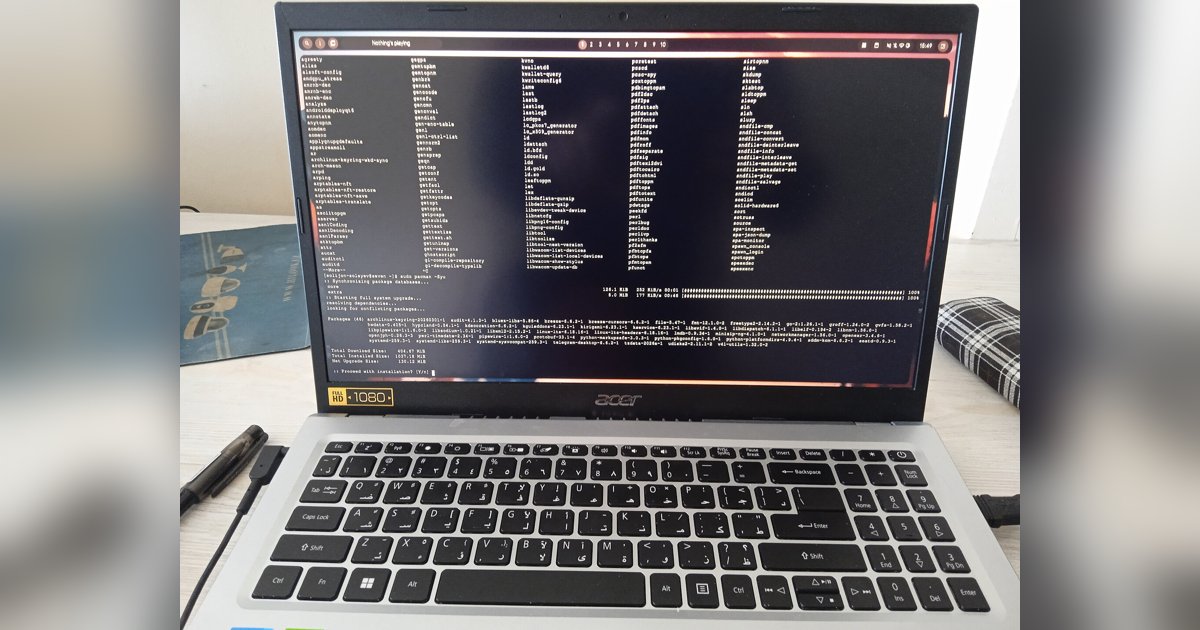
    The pop-up that says an update is ready tends to arrive at the worst moment, so most of us click remind me tomorrow. A week later it is still waiting. Developing sensible software update habits is one of the most effective, least glamorous things you can do for your digital life, and it does not take much time.

    Why updates matter

    Updates do several jobs. The most important is fixing security vulnerabilities, which are flaws that attackers can exploit to steal data or take control of a device. Once a fix is published, criminals study it and build attacks aimed at people who have not applied it. That is why delay carries risk.

    Updates also repair bugs, improve battery life and compatibility, and sometimes add features. Occasionally they change an interface in ways you dislike, which explains some of the reluctance. But the security argument usually outweighs the annoyance.

    What needs updating

    People think of the phone and laptop operating system, but the list is longer.

    • Operating systems on phones, tablets and computers.
    • Web browsers and their extensions, which handle a huge amount of untrusted content.
    • Apps, especially those handling money, messaging or files.
    • Router firmware, which protects your whole network and is often forgotten.
    • Smart home devices such as cameras, plugs and TVs.
    • Office and creative software on your computer.

    Devices that no longer receive updates become a growing risk. Check your manufacturer’s support page for an end-of-support date before buying and plan to replace gear that has passed it.

    Turn on automatic updates

    The simplest of all software update habits is letting the machine do the work. Enable automatic updates for the operating system, browser and apps wherever the option exists. Set an installation window overnight, when the device is plugged in and idle.

    Automatic updates do carry a small chance of problems, but for most home users the protection is worth it. Businesses with specialist tools may want to test first, which is why IT departments often stage rollouts.

    When it is fine to wait a few days

    There is a case for patience with major version upgrades, such as a new yearly release of an operating system. Early versions sometimes ship with bugs, and compatibility with older apps or printers may lag. Waiting a couple of weeks and reading reports is reasonable, as long as you keep installing the smaller security patches in the meantime. For critical security fixes, though, update promptly.

    A calm routine for software update habits

    Instead of reacting to alerts, schedule it. Pick a day each month, perhaps the first Sunday, and run through a short list.

    1. Check the operating system update page on each computer and phone.
    2. Open the app store and update everything pending.
    3. Restart each device, since some updates only finish after a reboot.
    4. Log in to your router and confirm the firmware version, updating if offered.
    5. Remove apps and browser extensions you no longer use. Less software means fewer things to patch.

    Restarting is an underrated step. Many people leave a laptop sleeping for weeks, which delays updates that need a restart to take effect.

    Protect yourself before you update

    Updates rarely cause data loss, but a backup makes the risk irrelevant. Keep a recent copy of important files on an external drive or a cloud service. Make sure there is enough battery or that the device is plugged in, and free some storage space, because large updates need room to unpack.

    Beware of fake update prompts

    Criminals also exploit the habit of clicking update. A pop-up on a website claiming your browser or video player is out of date is a common trick to install malware. Real updates come from the system settings or the official app store, not from a web page or an email link. If you are unsure, close the page and go to settings yourself.

    Make it automatic and forget it

    Good software update habits are mostly about removing decisions. Switch on automation, restart once a week, review your router and old apps monthly, and keep a backup. The reward is uneventful computing: fewer breaches, fewer odd glitches and no more pop-ups making you feel guilty every morning.

    For more background, see the Wikipedia article.

    Related reading

  • Why You Need a Password Manager and How to Start Using One

    Why You Need a Password Manager and How to Start Using One

    If you reuse the same password on several sites, you are relying on the weakest of them to protect all the others. When one company suffers a breach, attackers try the stolen email and password combination across banks, shops and social networks. A password manager breaks that chain by giving every account its own long, random password, while you remember just one strong phrase.

    Here is how these tools work, how to choose one and how to make the switch without losing a weekend.

    What a password manager actually does

    A password manager is an encrypted vault. You create a master password, and the app uses it to lock everything inside. When you visit a login page, it fills in the right credentials for you. When you sign up somewhere new, it generates a random password such as a string of mixed characters that nobody could guess, and saves it automatically.

    Most reputable services use a design in which the vault is encrypted on your own device before it is synced, so the company itself cannot read your passwords. That is worth checking in a provider’s security documentation.

    The benefits go beyond convenience

    • Unique passwords everywhere. A leak at one site cannot unlock another.
    • Phishing resistance. The tool fills credentials only on the genuine web address, so a lookalike page often gets no match, which is a useful warning sign.
    • Secure notes and cards. Many vaults store software licences, Wi-Fi codes and payment details as well.
    • Breach alerts. Some flag weak, reused or exposed passwords so you can fix them.

    Choosing one

    Many options exist, including dedicated apps, browser-built tools and ones bundled with an operating system. No single answer fits everyone, but a few questions narrow the field.

    1. Does it work on every device you use, such as phone, laptop and tablet?
    2. Does it support passkeys and two-factor codes?
    3. Has it had independent security audits, and how did the company handle past incidents?
    4. Can family members share items safely?
    5. What happens if you forget the master password? Some services cannot recover it by design.

    Browser-based tools are the easiest starting point and far better than reusing passwords. Standalone apps usually offer more features and work across browsers. Choose the one you will actually use consistently.

    How to switch in an afternoon

    Do not try to convert everything at once. Start with an hour and expand.

    Step one: install and set the master password

    Pick a long passphrase of several unrelated words, something you can remember but nobody could guess, and do not use it anywhere else. Write a copy and keep it somewhere physically safe, like a home folder or a safe.

    Step two: import what you have

    Browsers and many apps can export saved logins to a file, and the new password manager can import it. Delete the export file immediately afterward, because it is unencrypted.

    Step three: fix the important accounts first

    Change passwords for your email, banking, cloud storage and work accounts. Email matters most, since password resets go there. Then work through the rest gradually, updating each one when you next log in.

    Step four: turn on two-factor authentication

    Add a second step, such as an authenticator app or a hardware key, to accounts that support it. A password manager and two-factor sign-in together cover most everyday threats.

    Mistakes to avoid

    • A weak master password. It is the key to the vault, so make it long.
    • Skipping device security. Lock your phone and computer with a PIN or biometric, and keep software updated.
    • Sharing logins through chat. Use the sharing feature in your vault instead.
    • Ignoring recovery. Set up emergency access or a recovery method before you need it.

    What about the risk of a single point of failure?

    It is a fair worry. If a vault were breached, the damage could be wide. In practice, strong encryption and a good master password make that unlikely, and the alternative, reusing a few passwords, is far riskier. Security experts, including many national cyber agencies, generally recommend using a password manager for exactly this reason.

    Give yourself a week. At first, the autofill pop-ups feel unfamiliar, but soon you will stop thinking about passwords at all, which is the point. Your accounts will be better protected, and you will never have to click forgot password again.

    For more background, see the Wikipedia article.

    Related reading

  • What Is a Large Language Model? A Plain-English Explainer

    What Is a Large Language Model? A Plain-English Explainer

    Chatbots that write emails, summarize documents and draft code are everywhere, and nearly all of them run on the same core idea. A large language model, often shortened to LLM, is a program trained on enormous amounts of text to predict what words are likely to come next. That simple description hides a lot, so let us unpack it without jargon.

    Prediction at a huge scale

    Imagine finishing the sentence: the cat sat on the. You would probably say mat or sofa. You make that guess because you have read and heard similar phrases many times. A large language model does something like that, but across billions of examples and with far more context.

    Technically, text is split into small pieces called tokens, which may be whole words or fragments. The model assigns probabilities to possible next tokens, picks one, adds it to the sequence and repeats. Long, coherent answers emerge from this loop of one small prediction after another.

    How training works

    Training happens in stages.

    1. Pretraining. The model reads a vast collection of text, such as books, websites, articles and code, and adjusts internal numbers called parameters to get better at predicting missing or next tokens. Modern models have billions or more of these parameters.
    2. Fine-tuning. Developers train it further on examples of good question-and-answer behaviour so it acts like a helpful assistant instead of just continuing text.
    3. Human feedback and safety tuning. People rate responses, and the model learns to prefer helpful, honest and harmless ones.

    The key architecture behind this is the transformer, introduced in a 2017 research paper. Its attention mechanism lets the model weigh which earlier words matter most for the next prediction, which is why it handles long passages far better than older approaches.

    What a large language model is good at

    • Drafting and rewriting text in a chosen tone.
    • Summarizing long documents into key points.
    • Translating between languages.
    • Explaining concepts at different levels.
    • Writing and debugging code.
    • Brainstorming ideas and structuring plans.

    These are strengths because they depend on patterns in language, which the model has absorbed deeply.

    Where it goes wrong

    The same design creates predictable weaknesses.

    Hallucinations

    Because a model generates plausible text rather than looking up verified facts, it can produce confident statements that are false: an invented citation, a wrong date, a nonexistent function. It is not lying; it has no built-in sense of truth, only likelihood.

    Stale knowledge

    The model learned from data up to a cutoff point. Anything after that, it does not know unless it is connected to a search tool or given the information in your prompt.

    Bias

    Training text reflects human writing, including its stereotypes and gaps. Developers work to reduce this, but it cannot be eliminated entirely.

    Weak arithmetic and logic

    Models can stumble on multi-step calculations or tricky reasoning, although newer systems are better, and many call external tools for maths.

    Using one wisely

    Treat the output as a capable first draft from an assistant who sometimes bluffs. A few habits help.

    • Be specific. State your goal, audience, format and any constraints.
    • Provide source material. Pasting the actual text you want summarized reduces invention.
    • Verify important claims. Check names, numbers, legal and medical statements against reliable sources.
    • Protect sensitive data. Read the provider’s privacy policy before sharing confidential or personal information.
    • Iterate. Ask follow-up questions, request changes and challenge answers that seem off.

    Does it understand anything?

    Researchers still debate this. A large language model manipulates patterns in ways that often look like understanding, and it can solve problems it was never explicitly shown. Yet it lacks lived experience, and its errors reveal that it is not reasoning like a person. Both views contain something true, and the honest answer is that it is a new kind of tool that does not fit older categories neatly.

    What to take away

    A large language model is a statistical engine for language, trained at massive scale and shaped by human feedback. It can save hours on writing, learning and coding, as long as you stay in charge of the facts. Knowing how it works, and where it tends to fail, is the best protection against both hype and fear.

    For more background, see the Wikipedia article.

    Related reading